
-


-
Products
Information
Free PLR Articles
Your address is safe with us.
Tag Archives: dfp
DFP clarifications that aren’t in the tutorial
(written by TheChiro)
I’m still sooo freakin’ confused by this. Hopefully someone can help shed some light for me. This is what I want to do:
- Medium Rectangle [MR] within threads (guests and members – not staff or premium)
Responsive with Mobile unit - MR ATF in guest welcome message (just guests)
Responsive with mobile unit - Leaderboard [LB] between pagination and reply box at bottom
Responsive with Mobile and Full Banner [FB]
Now here’s where I get confused. I need to make those as Ad Units. So that should be a total of 4 ad units? Or would each of those need to be a separate ad unit, which would be 7 ad units? The more confusing part then…Placements.
DFP goes asynchronous with its new Google Publisher Tag. Time to switch
On 25th Oktober 2011 Google introduced the new Google Publisher Tag for DFP Small Business.
The new Google Publisher Tags has a number of new benefits and improvements over the existing Google Ad Manager Tags.
There are multiple benefits of using these new tags:
- Faster page loads – An asynchronous JavaScript fetch means that instead of waiting for the JavaScript to be returned from the DoubleClick servers, the page continues rendering and loads the ads into iframes when the creatives are returned from the server.
- Google Publisher Console – The tag comes with a built-in debugging and support tool called the Google Publisher Console, which is enabled on all pages containing the Google Publisher Tag. To activate the Publisher Console, load your webpage containing Google Publisher Tags into a browser and append ?google_console=1 to the URL and use the keyboard shortcut Ctrl+F10 to toggle the console. The console provides checks for common tagging errors, visual highlights of all ad units and creatives on the page to help with debugging, and an alternative point of entry into the DFP front-end.
- Single request mode – Single request mode means that instead of sending individual ad requests to DoubleClick servers, the browser is able to send one request notifying the server of all ad units on the page. This enables advanced roadblocking and improves page load time.
The differences between Google Ad Manager tags and the new Google Publisher tags?
| Features | Google Ad Manager tags | Google Publisher Tags |
|---|---|---|
| Interstitials | – | + |
| Number of ad requests per page | Equal to number of ad slots per page (up to 16) | One ad request per page with single request mode |
| Access to the Google Publisher Console | – | + |
| Passbacks | – | + |
| Multiple instances of the same ad unit on a page | – | + |
| SSL support | – | + |
| Slot-level custom targeting | – (only for AdSense parameters) | + |
| Page-level custom targeting | – | + |
| Asynchronously refreshing ad slots on a page | – | + |
| Non-JavaScript rendering (for email ads) | – | + |
Switching to asynchronous Google Publisher Tags, can be quite some work,
It means replacing all the old Tags with the new asynchronous Tags but it is really worth it.
The page renders a lot faster now which in my opinion is the biggest plus and this should be reason enough to switch.
How to switch from the old Google Ad Manager Tags to the new asynchronous Google Publisher Tags?
- Go to your Inventory Tab and click on Generate tags.
- Select all the Ad Units for which you want to switch to the new Tag. Include them and click on Generate tags.
- After that you see the Google Ad Manager Tags as a default but there is a new drop down at the top.
Select Google Publisher Tag (asynchronous)
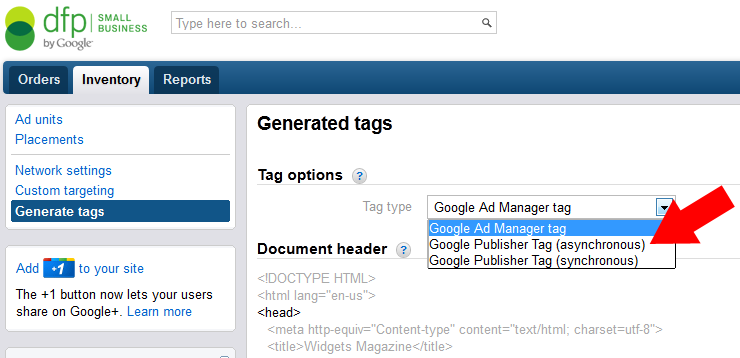
Now you need to replace your old Tag Code with the new Asynchronous Tag Code.
You need to replace both parts of the code, the header part and the body part otherwise it won’t work.
Contgratulations, you just made your website load faster.
Tagged ads, adsense, dfp, server, small business, tips, tutorial
Leave a comment
DFP noob
(written by TheChiro)
Hey! I want to say how great all the information on this site is. Been soaking it in for a few days now. I just hope I can understand this mass confusion that I call DFP.
I think tomorrow I’m going to have to tackle this beast with the help of the great DFP guide!!
DFP Small Business Line Item Settings Explained
< DFP Small Business Tutorial
Basic Information
Name:
Name of the Line Item.
Inventory Size:
This setting defines the size of the creatives you want to use in this Line Item. All Creatives not matching the sizes selected here are automatically filtered out.
Settings
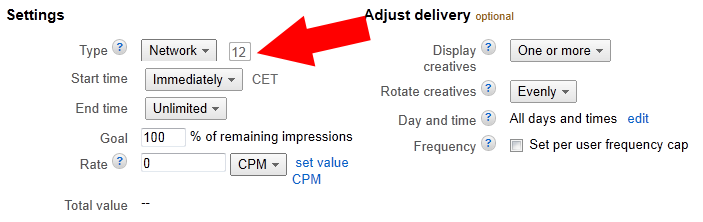
Type (priority):
The Type priority setting determines the order of delivery (priority) of your Line Item compared to your other Line Items applicable for the same targeted Ad Unit. There are other factors as well involved for determine delivery priority but this is the most important one. The number after the Type Setting indicates the priority of delivery. The lower the number the higher the priority. What are the delivery priority options?. The Types are listed in highest precedence to lowest precedence:
- Sponsorship: Sponsorship Line Items have the highest delivery priority. Use this setting if you basically want an Ad to run all the time (you can specify a certain percentage of your impressions) for a certain duration. With this setting the Line Item will deliver as fast as possible and will override any competing line items of lower priority. Sponsorship support page.
- Standard: The standard delivery option has 3 ranks (High, Normal, Low) determining the delivery priority and you can define a goal quantity of impressions or clicks. The delivery also depends on the amount of impressions served (over- or underserved), is it front-loaded (Delivery Impressions = as fast as possible) and how close the end date is. Standard support page.
- Network: Network type is basically giving a percentage of the remaining impressions to a Line Item not used by higher priority Line Items. This is good to use when you want several Line Items to display evenly. Typically this Priority is used for delivering Ad Networks. This Priority is the first priority setting that makes the Line Item eligible to compete directly with AdSense and Ad Exchange. Network support page.
- Bulk: This setting is basically a lower priority version of the Standard Type setting. It delivers a percentage of the remaining impressions to a Line Item not used by higher priority Line Items. This Priority makes the Line Item eligible to compete directly with AdSense and Ad Exchange. Bulk support page.
- Price Priority: This setting fills your unsold inventory with the highest paying line item available. If you sell direct advertising based on impressions this Line Item setting is probably the one you want to use. You can define daily or lifetime delivery caps and you can compete the Line Item directly with AdSense and Ad Exchange. Price Priority support page.
- House: House priority is the lowest priority and the fall back option if no other Line Items are available to be served. This is typically used for promoting your own services or products. House support page.
If you have multiple Line Items applicable for the same Ad Unit DFP will first check for Sponsorship -> Standard -> Network -> Bulk -> Price Priority -> House.
Start and End: This setting is pretty self-explanatory. Line Items with Standard and Bulk Priority deliver ads evenly across the flight (Daily Delivery Goal = [Total Quantity] / [Total Days from Start to End]). That is why you must define an End Time for delivery and can’t choose unlimited run time.
Tagged ads, adsense, dfp, server, small business, tips, tutorial
4 Comments
DFP Small Business Tutorial
 Google offers a free (if fewer than 90 million impressions/month) and very powerful Ad Server called DoubleClick for Publishers (DFP) Small Business.
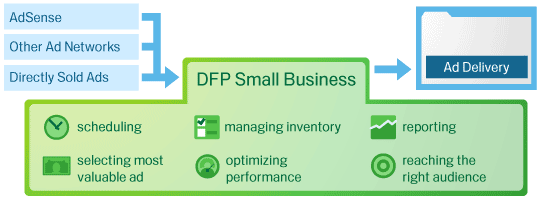
When I started using DFP Small Business I first had some trouble to understand how it works.
The DFP Small Business Help Pages really help to solve specific problems.
But I could not find an easy to understand tutorial on how to setup and use DFP Small Busines, step by step.
It took me over half a year to wrap my head around everything that I needed to run DFP as my Ad Server, with all the features I required.
To spare you the learning curve here is a step by step tutorial on how to use DFP Small Business as Ad Server to serve your Ads (including AdSense Ads) on your websites.
Table of contents:
- Introduction into DFP Small Business
- How to setup Ad Units so that you can serve Ads via DFP Small Business
- How to setup a campaign for an Advertiser that booked Advertising on your website
- How to set up Google AdSense as Line Item using DFP Small Business
- How to set up Google AdSense using DFP Small Business build in AdSense option
- How to set up AdSense using DFPs build in AdSense option – Async Version
- How to run Split Tests with DFP Small Business
- How to make AdSense compete with your other Ad inventory in DFP Small Business
- Using DFP Small Business for opening AdSense in a new window
- DFP Small Business Line Item Settings Explained
- How to roadblock creatives, run site takeovers or serve a Wallpaper Ad with DFP
- How to create a Basic Cascade with DFP Small Business
- How to pass Information to DFP Small Business by using Patterns
- DFP goes asynchronous with its new Google Publisher Tag. Time to switch
Appendix
Let us start with an Introduction into DFP Small Business.
Tagged ads, adsense, dfp, server, small business, tips, tutorial
23 Comments