
-


-
Products
Information
Free PLR Articles
Your address is safe with us.
Tag Archives: small business
How to pass Information to DFP Small Business by using Patterns
Sometimes, you need to be able to pass variables into your Creative.
Unfortunately, DFP Small Business doesn’t support this very well.
That’s not to say that they don’t support it, they do. But the limitations on how they support can make it unusable in some circumstances.
The Pattern Method
Utilizing the tagging system in DFP, you can tag pages with certain attributes.
You can also pass these attributes values into your Creatives (Third Party) by using the Pattern Macro (%%PATTERN:attribute name%%). Can I pass custom variables into a tag?
There are two methods of doing the Pattern method. You can use use the attributes as a actual value or a superficial value. You can also mix and match these methods.
Actual Usage
Actual usage refers to the fact that the Attribute that is put on the page has an actual purpose on the page. For example, you might tag a webpage with “Type = Sports”. This
has an actual value that you may want to use in targeting your Line Items.
Example:
Add the following Javascript in your DFP Header Tag. Find:
<script type='text/javascript'>
GA_googleFetchAds();
</script>
and add above:
<script language="JavaScript">
GA_googleAddAttr("Passing", "Pattern");
</script>
The above code puts an attribute “Passing” with the value “Pattern”.
The Line Item settings is:

And the Creative:
<div style="width:300px; height:250px; padding: 20px; border: blue solid 2px;">
<p>DFP Passing attribute should have the value of "Pattern" and is actually: %%PATTERN:Passing%%</p>
</div>
Which gives us a Creative 300×250 in size with a Blue border and text inside it, showing what information has been passed to it (in this case, it should be word “Pattern”):

Superficial Value
Superficial value allows you to pass information without impacting anything else.
For example, I might use an attribute called “Info”. “Info” has no purpose in determine what Line Item should be shown so all Line Items will use the criteria “Info DOES NOT EQUAL AAAAAA” (AAAAAA being a value I will never use). Then you can pass whatever information to the attribute “Info” and use the the appropiate Macro in DFP to access that data.
Here’s a quick example:
Add the following Javascript in your DFP Header Tag. Find:
<script type='text/javascript'>
GA_googleFetchAds();
</script>
and add above:
<script language="JavaScript">
GA_googleAddAttr("Passing", "Undefined");
</script>
The above code puts an attribute “Passing” with the value “Undefined” as default.
Take a look at the bottom of the page where the actual ad is shown and see the data
being passed into the Creative.
The Line Item settings is:

I have the Targeting criteria set so that the Line Item will show when it’s NOT “Passing” or
“Javascript”.
You can use whatever value you want. The reason I want it to be not “Passing” or “Javascript” is, because I have Line Items for those two already.
So, this Line Item will show on all pages which have the attribute “Passing” on it and has a value that does not equal to “Passing” or “Javascript”.
You may wish to simply create a Free-Form Custom Targeting
(Inventory -> Custom Targeting -> New Key -> Values = Can I pass custom variables into a tag?).
And in your Line Items, make it so that the key does not equal a value you won’t use (so that it will effectively deliver on all your pages since that condition will always be true).
And the Creative:
<div style="width:300px; height:250px; padding: 20px; border: red solid 2px;">
<p>DFP Passing attribute has the value: %%PATTERN:Passing%%</p>
</div>
Which gives us a Creative 300×250 in size with a Red border, and text inside it showing
what information has been passed to it via the attribute “Passing”:

Conclusion
You can utilize this knowledge to pass in information to your Creative. You can mix and
match both methods, utilize Javascript or a server-side language such as PHP to create
a fairly flexible system of passing important information.
Tagged ads, adsense, dfp, server, small business, tips, tutorial
Leave a comment
How to roadblock creatives, run site takeovers or serve a Wallpaper Ad with DFP
Sometimes it is needed to serve more then one creative from one advertiser on the same page.
The term roadblocking comes from television, where media buyers sometimes placed commercials in all major television networks in the same period of time.
No matter which television channel an audience member tunes in at that time, they have the opportunity to watch the commercial.
This term extended to the online world where a media planner can buy all the advertising on a Web site for a 24-hour period or longer.
This approach is called a site takeover.
Another scenario would be that your advertiser wants to serve a set of creatives to a user all at once on the same page e.g. displaying a Wallpaper Ad which consists of a leaderboard banner (728x90px) and a skyscraper (120x600px).
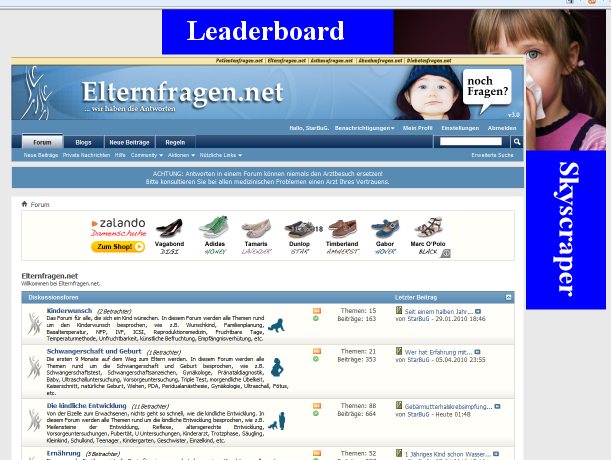
So how can you roadblock ads with DFP Small Business?
Let’s create a Wallpaper Ad as example:
Assumption:
- You already have created an order for the Advertiser. If you don’t, read: How to setup a campaign for an Advertiser that booked Advertising on your website
- You already have set up two Ad Units on your website. One Large (or medium) Skyscraper and one leaderboard in the correct position (see screenshot for how it should look like). If you don’t, read: How to setup Ad Units so that you can serve Ads via DFP Small Business
Step by step:
- From the Orders tab, click an existing order in the list or create a new order.
- Click New line item and begin entering your line item settings.
- For inventory sizes select 728×90 (Leaderboard) and 120x600px (Skyscraper) or 160x600px (Wide Skyscraper) depending on what you created as Ad Unit. If you want to run a site takeover you must select all Ad Unit sizes available on the pages you want to run these Ads.
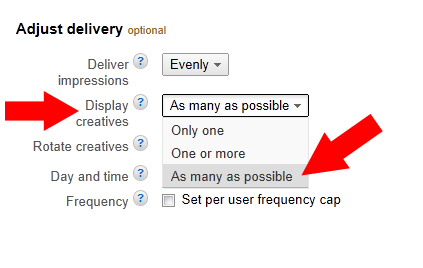
- Under Adjust delivery > Display creatives drop-down menu select ‘As many as possible’. This will ensure that all creatives from this line item will display in all available ad units on the page.
- Click Save.
- Create two creatives within this line item. One with the leaderboard banner and one with the skyscraper banner.
For more information about Line Item Settings read this: DFP Small Business Line Item Settings Explained
Now you are serving your first wallpaper. Matching the leaderboard with skyscraper can be a little tricky. I wrote a mod for vBulletin forums to display a wallpaper ad.
You might want to take a look for how I did it: Wallpaper AD v2.0 – AdSenseExperts Exclusive
You can use your browsers Developer Tools (usually F12).
You can use it to manipulate CSS on the fly for every website. Makes the live of a website designer a lot easier.
There are some pitfalls though if you enable roadblocking:
- Creatives for a line item will serve to as many ad tags on the page as the line item is eligible for.
- An individual creative can only be served once on a single page view. This is important! For example, if you have two 300x250px Ad Unit Tags on the page, you must upload two 300×250 creatives because a single 300x250px creative cannot be served to both ad tags.
- By selecting the ‘As many as possible’ option, you are not guaranteeing that all of these creatives will serve together every time.You need to ensure that your line item is only targeting pages on your website that have as many ad tags as you have creatives in that line item, and that the sizes and targeting of the line item match up with the tags on those pages.For example, if a page has two ad tags and the line item has three creatives, the line item is eligible to serve and two creatives will serve to that page.If a page has four ad tags and the line item has three creatives, the line item will still be eligible to serve and the line item will serve to three of the four ad tags.
Tagged ads, adsense, dfp, server, small business, tips, tutorial
8 Comments
How to run Split Tests with DFP Small Business
If you are using the build in AdSense Feature of DFP like I described here: How to set up Google AdSense using DFP Small Business build in AdSense option then you need to create a new Order, a Line Item and setup AdSense as Creatives if you want to be able to run a split test.
Read my old approach on how to display AdSense with DFP Small Business here: How to set up Google AdSense as Line Item using DFP Small Business
With DFP you can easily run tests like a 50:50 Split test to see which Ad performs best for your website. I for one did several split test just this week.
I ran Large Rectangles inside my first posts of each thread of my forums and I wanted to see if a medium rectangle performs better.
I first created a new AdSense Channel for the medium rectangle to track the results and a medium rectangle AdSense Ad Unit to which I assigned the newly created AdSense Channel.
Then I created a second creative for my medium rectangle inside the Line Item which serves the Ads inside my first posts. So now this Line Item contains 2 creatives, one for my large rectangle and one for my medium rectangle.
Both creatives are served evenly (Line Item Setting: Rotate creatives > Evenly) which means in a 50:50 manner.
Now you let both Ads run for let’s say 30days and then compare their performance in your AdSense Reports interface by comparing both channels of the Ads.
If you see that one Ad Unit outperforms the other Ad Unit simply disable displaying the corresponding creative in DFP and you just increased your income for that Ad Spot.
Do this with all changes and over time you will optimize your Ad Inventory to maximize your revenue.
My recent split tests:
I serve a medium rectangle inside the first post of each thread on my medical forum.
Currently the Ad is set to serve Image&Text Ads.
In general the more competition there is for an ad unit the higher your CPC will be. However not always does a higher CPC results in higher earnings!
For about 2 years now I never thought it might be possible that images or text only ads would earn me more then image&text.
But like I said, I do like testing and so I started testing.
I took one of my sub forums as testing ground and run the test for 2 weeks.
Example from my recent split tests (no real values due to AdSense ToS but these reflect my results):
Each Ad Unit got around 40k Impressions
Image & Text: CTR ~0,9 | CPC ~34 Cent | RPM ~2,9 Euro
Text only: CTR ~0,3 | CPC ~17 Cent | RPM ~0,44 Euro
Image only: CTR ~1,0 | CPC ~31 Cent | RPM ~3,2 Euro
What does this tell me? (not you! You need to test for yourself to see impact for you)
a) Never ever serve text only ads
b) If I switch to Image only Ads I earn 30 Cents more per 1000 Impressions
c) Even though that the CPC for ‘Image only’ is lower then ‘Image & Text’ Ads, my visitors seem to click Image Ads more often which results in a higher RPM
d) I will expand the test to see if this is a phenomenon in my sub forum or if it works the same way for different topics
e) I made a note to myself to run this test again in about 6-8 month after I switched to image only Ads
Tagged ads, adsense, dfp, server, small business, tips, tutorial
4 Comments
How to set up AdSense using DFPs build in AdSense option – Async Version
It is time for a new Chapter of my DFP Small Business Tutorial.
In Oktober 2011 Google introduced the new Google Publisher Tag for DFP Small Business.
The new Google Publisher Tags has a number of new benefits and improvements over the existing Google Ad Manager Tags including faster page loads due to an asynchronous JavaScript fetch.
This tutorial explains how to set up AdSense using DFPs build in AdSense option by using the asynchronous Google Publisher Tags.
Read more about the new Google Publisher Tags here: DFP goes asynchronous with its new Google Publisher Tag. Time to switch
If you are using the old Google Ad Manager Tags read the old version of this tutorial here: How to set up Google AdSense using DFP Small Business build in AdSense option
In the Chapter How to set up Google AdSense as Line Item using DFP Small Business I told you how to set up AdSense as a Third Party Creative.
I choose this way because the build in AdSense Feature of DFP didn’t offer all the functionality that AdSense provided. Or at least I did not now how to do it. However things have changed.
The build in AdSense Feature of DFP provides everything we need to set up AdSense without the need for creating a lot of Line Items and Creatives and still have the full functionality of the old set up.
So how to use the build in AdSense Feature to display AdSense on your website?
I assume you already set up DFP Small Business to serve Ads on your website which means you created Ad Units and implemented the tags into your HTML source code.
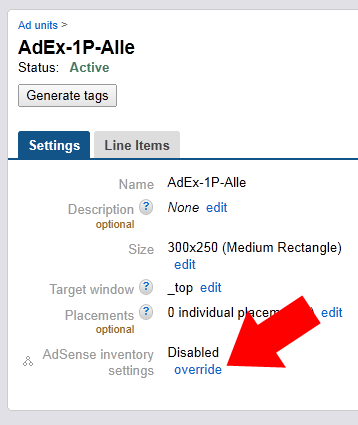
Now go to your Inventory Tab in DFP and select the Ad Unit you want to display AdSense in. Click on override next to “AdSense inventory settings – Disabled”
and check the checkbox before “Maximize revenue of unsold and remnant inventory with AdSense”. This interface should look familiar to you now. Make your AdSense Settings and Styling Settings and click Save.
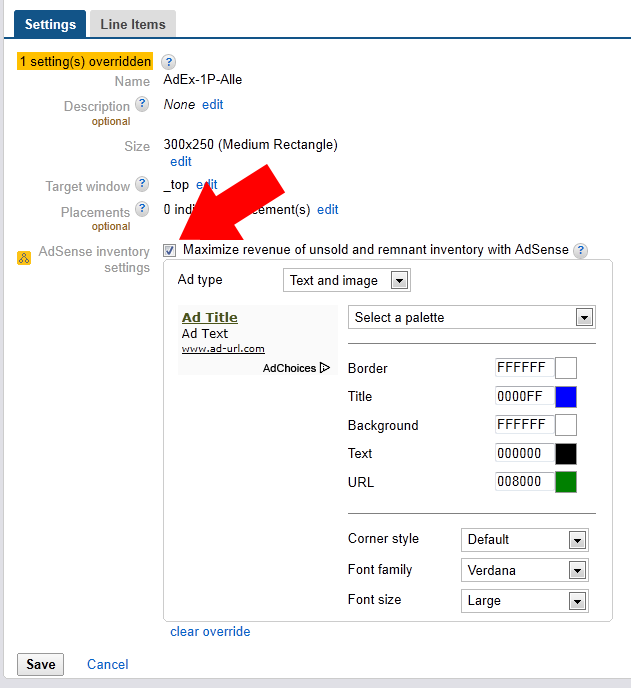
Now your Ad Unit will serve AdSense Ads on this Ad Unit.
ATTENTION:
Due to changes in DFP Small Business and AdSense Reportings tracking AdSense served via DFP with Custom Channels is no longer possible!
The part below is no longer needed / does not work anymore.
BUT even though AdSense is served now, we still don’t have a Channel attached to the AdSense Ad to track its performance. This was the main reason for me to suggest my first method to serve AdSense Ads as Third Party Creatives. But fortunately there is a way to attach a channel (or other attributes) to AdSense via DFP Tags.
You can override AdSense Settings on a per page and per unit level.
Available keys:
| New parameter | Example | Allowed values |
| adsense_channel_ids | 271828183+314159265 | valid AdSense channel IDs, separated by ‘+’ |
| adsense_ad_types | text_image | text, image, text_image |
| adsense_ad_format | 250x250_as | 468x60_as, 234x60_as, 125x125_as, 120x600_as, 160x600_as, 180x150_as, 120x240_as, 200x200_as, 250x250_as, 300x250_as, 336x280_as, 728x90_as |
| adsense_background_color | #000000 | hexadecimal colors |
| adsense_border_color | #000000 | hexadecimal colors |
| adsense_link_color | #000000 | hexadecimal colors |
| adsense_text_color | #000000 | hexadecimal colors |
| adsense_url_color | #000000 | hexadecimal colors |
| adsense_ui_features | rc:10 | rc:10 for very rounded corners, rc:6 for slightly rounded corners, rc:0 for square corners (default) |
So how do we attach an AdSense Channel to our Ad Unit? First you need to create your Custom Channel in AdSense for this specific Ad Unit. Login to AdSense, go to “My Ads > Custom Channels”.
Tagged ads, adsense, dfp, server, small business, tips, tutorial
22 Comments
How to set up Google AdSense as Line Item using DFP Small Business
Update:
This post is my old way of setting up AdSense with DFP.
This post is my old way of setting up AdSense with DFP.
I no longer recommend this approach because I figured out a way around the old limitation of styling and adding AdSense Custom channels to the build in AdSense option of DFP.
You can follow this guide if you want but the new method is easier. Read: How to set up Google AdSense using DFP Small Business build in AdSense option. You only need to follow this approach if you want to run Split Tests for specific Ad Units.
Create a new Order and name it like “YourWebsite – Google AdSense”. Now click on Company > Add a new company. As Name use ‘Google AdSense’ and as Type select ‘Ad Network’ and click save.
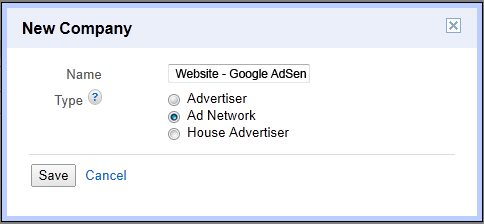
Now create a Line Item for each Ad Unit you have on your website. Here it is important to create a separate Line Item for each Ad Unit which serves an AdSense Ad Unit that has its own unique channel. Check your AdSense Ad Units to see which Line Items you need to create.
For more information on AdSense Channels read this: Different strategies to use AdSense Channels
Name the Line Item to describe the placement on your website and define the Inventory Size for this Line Item like we did in the example.
Now to the settings.
For Type select ‘Network’, for Start Time select ‘immediately’ and for End Time select ‘Unlimited’.
For Rotate creatives select ‘Evenly’ and leave the rest of the settings as they are.
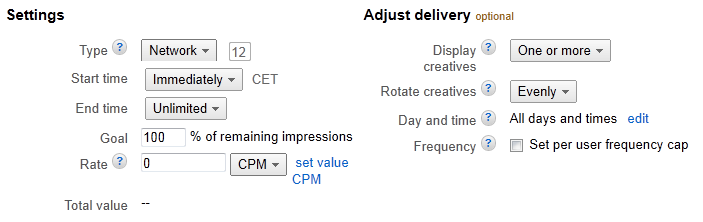
Now select the Ad Unit you want this Line Item to be served on and click save.
Repeat this step for each of your AdSense Ad Units that you track with a separate channel so that you have a separate Line Item for each AdSense Ad Unit.
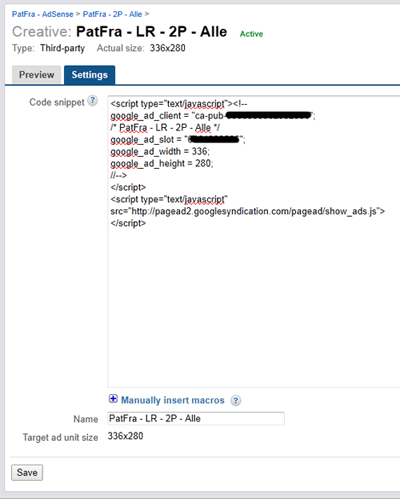
Now select the first Line Item you just created, click on Add Creatives and select ‘Third party »’
Switch to your AdSense Account and get the Code for the AdSense Ad Unit that you want to display in this Line Item and past the code into the Code snippet box. DFP will recognize AdSense code.
Give it a descriptive Name and click Save.
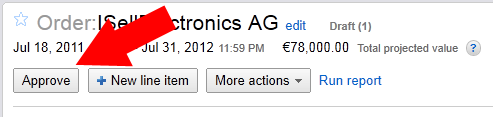
Now DFP is telling you that this Order has not yet been approved which means
it will not be delivered until you do. Approve it by clicking on the ‘Approve” Button.
Repeat the above step of adding your AdSense Code to each Line Item you just created until all Line Items have their AdSense Code as Creative assigned to them.
After you added a new Creative to a Line Item the status of the creative says ‘Ready‘.
It can take up to 60 Minutes before a creative starts to be delivered. Once it starts the Status will change to ‘Delivering‘.
Now your AdSense Ads are delivered on your websites via DFP Small Business.
Be careful with Using DFP Small Business for opening AdSense in a new window.
Tagged ads, adsense, dfp, server, small business, tips, tutorial
5 Comments