
-


-
Products
Information
Free PLR Articles
Your address is safe with us.
Tag Archives: small business
How to set up Google AdSense using DFP Small Business build in AdSense option
It is time for a new Chapter of my DFP Small Business Tutorial.
Attention: This tutorial is for the old Google Ad Manager Tags. If you switched to the new asynchronous Google Publisher Tags read this tutorial: How to set up AdSense using DFPs build in AdSense option – Async Version
Read more about asynchronous Google Publisher Tags
In the Chapter How to set up Google AdSense as Line Item using DFP Small Business I told you how to set up AdSense as a Third Party Creative. I choose this way because the build in AdSense Feature of DFP didn’t offer all the functionality that AdSense provided. Or at least I did not now how to do it. However things have changed.
The build in AdSense Feature of DFP provides everything we need to set up AdSense without the need for creating a lot of Line Items and Creatives and still have the full functionality of the old set up.
So how to use the build in AdSense Feature to display AdSense on your website?
I assume you already set up DFP Small Business to serve Ads on your website which means you created Ad Units and implemented the tags into your HTML source code.
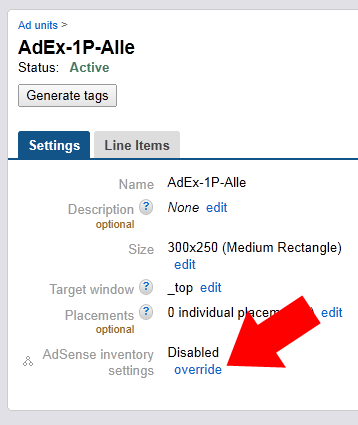
Now go to your Inventory Tab in DFP and select the Ad Unit you want to display AdSense in. Click on override next to “AdSense inventory settings – Disabled”
and check the checkbox before “Maximize revenue of unsold and remnant inventory with AdSense”. This interface should look familiar to you now. Make your AdSense Settings and Styling Settings and click Save.
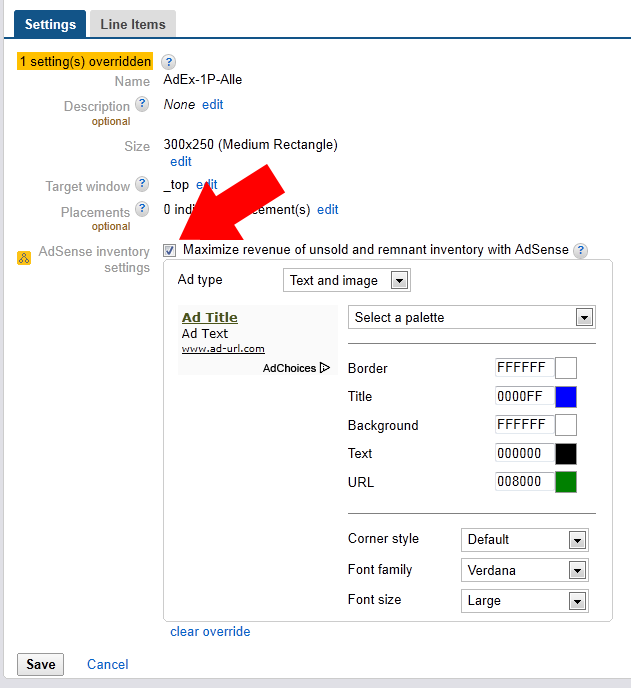
Now your Ad Unit will serve AdSense Ads on this Ad Unit.
Attention:
Due to changes in DFP Small Business and AdSense Reportings tracking AdSense served via DFP with Custom Channels is no longer possible!
The part below is no longer needed / does not work anymore.
BUT even though AdSense is served now, we still don’t have a Channel attached to the AdSense Ad to track its performance. This was the main reason for me to suggest my first method to serve AdSense Ads as Third Party Creatives. But fortunately there is a way to attach a channel (or other attributes) to AdSense via DFP Tags.
DFP Small Business Help says:
Can I override AdSense attributes in the tags on my page?
Yes. You can pass page- or unit-level AdSense setting overrides when tagging your pages:
- GA_googleAddAdSensePageAttr(“param”, “value”) Use this tag to override AdSense parameters for all the ad units on the page.
- GA_googleAddAdSenseSlotAttr(“unitname”, “param”, “value”) Use this tag to pass AdSense parameters for a particular ad unit. If both a unit-level and page-level setting exist, the unit-level setting would override the page-level setting.
You can override the following parameters:
- Border: param = google_color_border
- Title: param = google_color_link
- Background: param = google_color_bg
- Text: param = google_color_text
- URL: param = google_color_url
- Alternate ad URL: param = google_alternate_ad_url
- Ad unit (text, image, text/image): param = google_ad_type
- Corner style: param = google_ui_features
- Channel: param = google_ad_channel
So how do we attach an AdSense Channel to our Ad Unit? First you need to create your Custom Channel in AdSense for this specific Ad Unit. Login to AdSense, go to “My Ads > Custom Channels”.
If you did not create your custom channels yet this is the time to do so. Read this for more information on AdSense custom channels: Different strategies to use AdSense Channels
Next to the channel name for your AdSense Ad Unit you find the Channel ID which is a 10+ digit number, note it down.
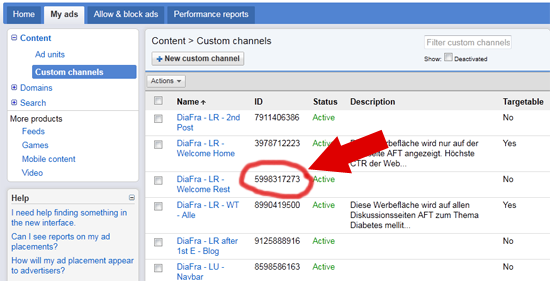
Now we need to edit the DFP Small Business Ad Unit Tag that we implemented in our website header to add the custom AdSense Channel to our Ad Unit.
You now have to options
- you can attach one or more AdSense Channels to all Ad Units on the page by using: GA_googleAddAdSensePageAttr(“param”, “value”)
- or you can attach a channel to each Ad Unit on a page individually by using: GA_googleAddAdSenseSlotAttr(“unitname”, “param”, “value”)(recommended)
The unitname is your DFP Small Business Ad Unit name e.g. PatFra-LR-1P-Threads-First_Aid from my example given here: How to setup Ad Units so that you can serve Ads via DFP Small Business
param is: google_ad_channel
and value is the AdSense Channel ID you noted down earlier.
So your DFP Small Business header Tag should look like this:
<script type='text/javascript' src='https://partner.googleadservices.com/gampad/google_service.js'>
</script>
<script type='text/javascript'>
GS_googleAddAdSenseService("ca-pub-YOUR_PUB-ID");
GS_googleEnableAllServices();
</script>
<script type='text/javascript'>
GA_googleAddSlot("ca-pub-YOUR_PUB-ID", "PatFra-LR-1P-Threads-First_Aid");
GA_googleAddAdSenseSlotAttr("PatFra-LR-1P-Threads-First_Aid", "google_ad_channel", "4132147310");
</script>
<script type='text/javascript'>
GA_googleFetchAds();
</script>
If you want to attach multiple channels to one Ad Unit use commas to separate them:
GA_googleAddAdSenseSlotAttr("PatFra-LR-1P-Threads-First_Aid", "google_ad_channel", "4132147310,4132127310,4132147319");
Now your DFP Small Business Ad Unit serves AdSense whenever there is no other creative to be served and AdSense is tracked by custom channels.
This way you don’t need to create line items and orders for each of your websites and AdSense Ad Units which should save you a lot of time.
How to setup a campaign for an Advertiser that booked Advertising on your website
Now that we have setup DFP Tags on our site we need to setup Ads or otherwise nothing will be shown. Go to the Orders Tab which I explained in the Introduction into DFP Small Business.
To make it easier to explain how Orders and Line Items work I do this with an example:
Let’s say you have an electronics company that wants to Advertise on your site which is called ‘ISellElectronics AG’.
So you create an Order called ‘ISellElectronics AG’ with the contact details for this Advertiser like the name of the person responsible and his email.
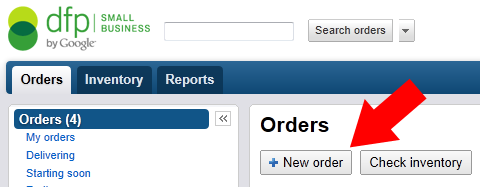
For this you click on the ‘New Order” Button.
Fill in the Name ‘ISellElectronics AG’ (This is the name that will appear in your Orders List)
Then click on the Company Text Field and (if it is a new advertiser) click on ‘Add new company’
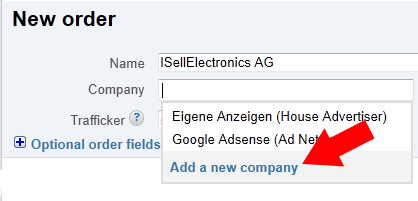
Name it ‘ISellElectronics AG’. You then have three options for the advertiser:
- Advertiser = A third party customer that advertises on your website(s)
- Ad Network = Ad Networks like Google AdSense where you don’t deal with a single Advertisers
- House Advertiser = Your own Company or Divisions of your company which places ‘in house’ Ads on your website
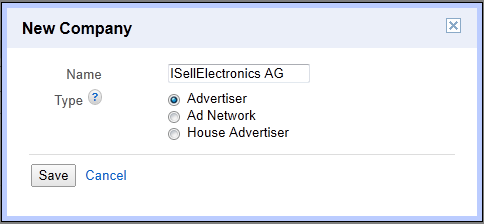
Select Advertiser and click Save.
You have created a new company profile. If you want to edit it you can do so by clicking on your Admin Tab (on the right) and then on Companies in the left navigation
The next Entry is Trafficker. It should be prefilled with your Email. If you have several people working with your DFP Small Business Ad Server you can create User Accounts for them. A trafficker is the person responsible for managing this Advertiser on your Ad Server.
If you click on Optional order fields additional options will expand to add more information about your new advertiser like contact details.
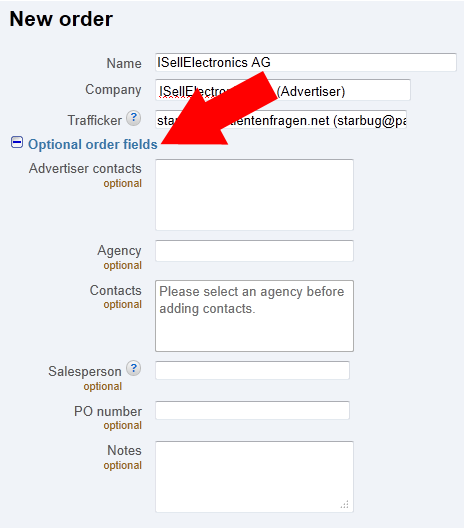
Let’s say that ISellElectronics AG wants to run 2 different campaigns on your website.
One campaign is about their ’52” Flat screen TV’ and the other campaign is about their “Deluxe Washing Machine”.
So you need to create 2 Line Items for this Advertiser. You do that by defining the first Line Item when creating the Order for ISellElectronics AG
The names for the first Line Item from our Example is: 52″ Flat screen TV
For each campaign the Advertiser provided you with Banners (Image, Flash, HTML, etc.) of different sizes for your different Ad Units (depending on where the Advertiser wants its Ads to show in your Inventory).
If you click on Inventory sizes below the Line Item Name you get a drop down with all available sizes for Ad Units in your inventory. Select the appropriate sizes that match the campaign the Advertiser wants to run on your site.
Below you’ll find the Settings for this campaign.You can find a detailed explanation of the Line Item settings here: DFP Small Business Line Item Settings Explained
Under the option Ad Targeting you can now select the Ad Units or Placements on which you want to display the Ads from this campaign.
Tagged ads, adsense, dfp, server, small business, tips, tutorial
5 Comments
How to setup Ad Units so that you can serve Ads via DFP Small Business
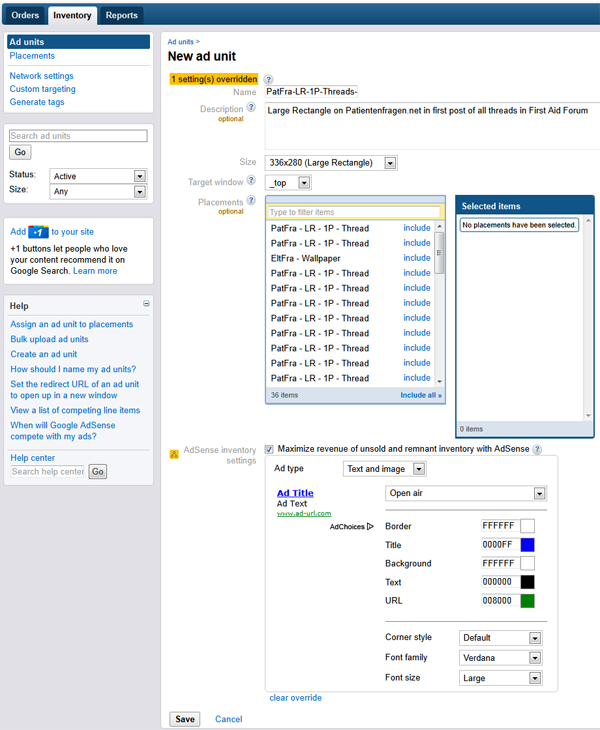
Ok now that we know what each option is let us set up your Ad Unit Inventory. Go to the Inventory Tab, select Ad Units on the left and then click on ‘+ New Ad Unit“.

Give your Ad Unit a descriptive name so that you know where it is located exactly. The name can only contain letters, numbers, underscore and hyphens. No spaces allowed.
As an example for a descriptive naming of Ad Units this is one Ad Unit I use:
PatFra-LR-1P-Threads-First_Aid
- PatFra = Acronym for the website
- LR = Large Rectangle
- 1P-Threads = The Ad Unit is located inside the first post of a thread in my forum
- First_Aid = The Ad only shows in my subforum with threads about “First Aid”
This way you have all the important information about your Ad Unit combined in the Ad Unit name so you know exactly what kind of Ad Unit it is and where it is located. (I explained my naming strategy in more detail here: The Secret to using Channels)
Now enter a description for your Ad Unit.
Then select the size of your Ad Unit e.g. 336x280px if it is a large rectangle.
The target window option defines the behavior of the Ad after a user clicked on it.
_top = the advertised website opens in the same window
_blank = the advertised website opens in a new window
Ok let’s continue.
Below the Target Window option you find the placement option. If you already have placements and want your Ad Unit to be part of one or more placements you can select them now. But don’t worry, you can always add them later too.
The next option is AdSense inventory settings.
I explain how to use this Option for displaying AdSense on your website with DFP here (recommended version): How to set up Google AdSense using DFP Small Business build in AdSense option
You can also set up AdSense as separate Line Items and Creatives which I explain here: How to set up Google AdSense as Line Item using DFP Small Business
Now click on save and you created your first Ad Unit.
The Page looks like this (if maximize revenue was selected):
Continue to create as many Ad Units as you have on your website(s).
After you have finished creating all Ad Units for your website you need to implement them into your website.
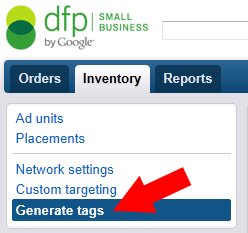
Click on the Inventory Tab and then on Generate tags on the left
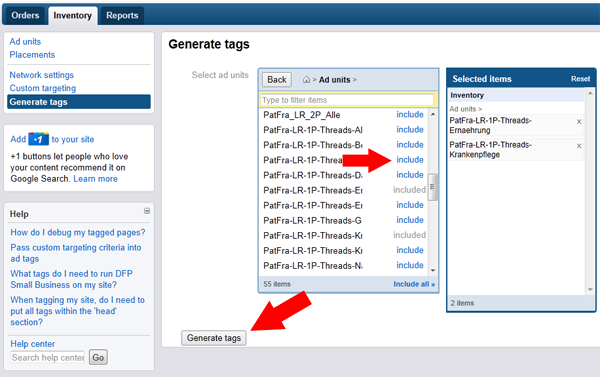
Select all the Ad Units that appear on your website for which you want to implement the Ad Units.
After you selected all Ad Units for your website click on Generate tags at the bottom.
First you need to click on the drop down menu (1) and select Google Publisher Tag (asynchronous). For more information about the new Google Publisher Tag read: DFP goes asynchronous with its new Google Publisher Tag. Time to switch
You then get a HTML implementation example where to put your DFP Ad Server Tags into your websites HTML.
Tagged ads, adsense, dfp, server, small business, tips, tutorial
14 Comments
Introduction into DFP Small Business
First you need to register with DFP Small Business.
You need a Google AdSense Account to use DFP Small Business.
DFP is some sort ‘Layer’ on top of Google AdSense because whenever you don’t have Third Party Ad Inventory to serve you can use the build in AdSense Option as fall back and even make AdSense compete with your inventory.
Register an AdSense Account if you don’t have one now or if you have one already it is as simple as logging in to DFP Small Business and linking your Google Account to DFP.
Side note: As AdSense Publisher you might want to check out my AdsenseExperts-Area.
After you have logged in to DFP Small Business you see three Tabs:
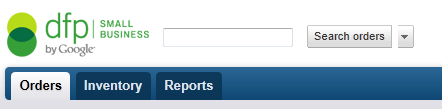
- Orders
- Inventory
- Reports
Orders
In the orders tab there are two major categories: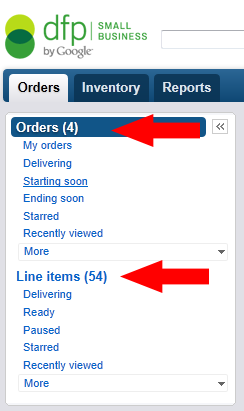
- Orders
- Line Items
Orders are the Advertisers that buy/bought Advertising on your site.
For each new customer you can create a separate Order including contact details for the specific Advertiser.
Each Order/Customer can contain as many Line Items as you like.
Line Items are the campaigns the Advertiser wants to run on your site.
Each Line Item/Campaign can contain as many Creatives (Ads/Banners) as you like. Bare with me, I’ll explain everything later with an example.
But before we can add Customers and Campaigns we have to add our Ad Inventory to DFP Small Business. So go to the Tab Inventory in the main navigation.
Inventory
In the Inventory Tab you have two options: 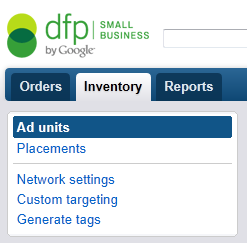
- Ad Units
- Placements
Ad Units are the actual Ad Units on your website. For example the leaderboard below your header or the large rectangle within your articles.
Placements are your booking options for your Ad Units. You can select a single Ad Unit as Placement or you can combine as many Ad Units as you like into one Placement.
This is useful if you want to offer your Advertisers different options like a Run of site campaign that includes all your Ad Units or a more grained down approach with the Advertiser only targeting one individual Ad Unit of your site.Another example would be to combine all ‘Above The Fold’ Ad Units into one Placement.
You don’t need to set up Placements in order to run Ad Campaigns on your site but the more complex your Ad Inventory becomes the more useful Placements will be.
Also you can make Placements available to AdWords Advertisers and offer them on your DoubleClick Ad Planner for sale. Both make your websites Ad inventory more visible to possible new Advertisers for placement targeting.
Reports
I’ll think you’ll figure out the reports tab options on your own.
Tagged ads, adsense, dfp, server, small business, tips, tutorial
5 Comments
One Hour Presentation of DFP Consultant Rainey Smith
DFP Consultant Rainey Smith was a guest speaker at the Knight Digital Media Center (KDMC) March 2011 Independent Journalists workshop, and delivered an excellent 1-hour presentation on maximizing ad revenue with DFP. While not really part of this DFP tutorial, Smith’s talk is highly recommended, so I’ve embedded it here:
Consultant Rainey Smith specializes in helping clients with DoubleClick for Publishers, or DFP — a powerful Google-based advertising platform that allows integration of custom-sold ads, external ad networks, and Google AdSense. In this presentation, Smith discussions monetization and advertising tips and strategies, with an eye toward the needs of hyperlocal and other small publications.
3.24.2011 Rainey Smith: Unraveling the Mysteries of Online Advertising from kdmcinfo.
Rainey Smith’s Website: oncalladops.com
Tagged ads, adsense, dfp, server, small business, tips, tutorial
Leave a comment